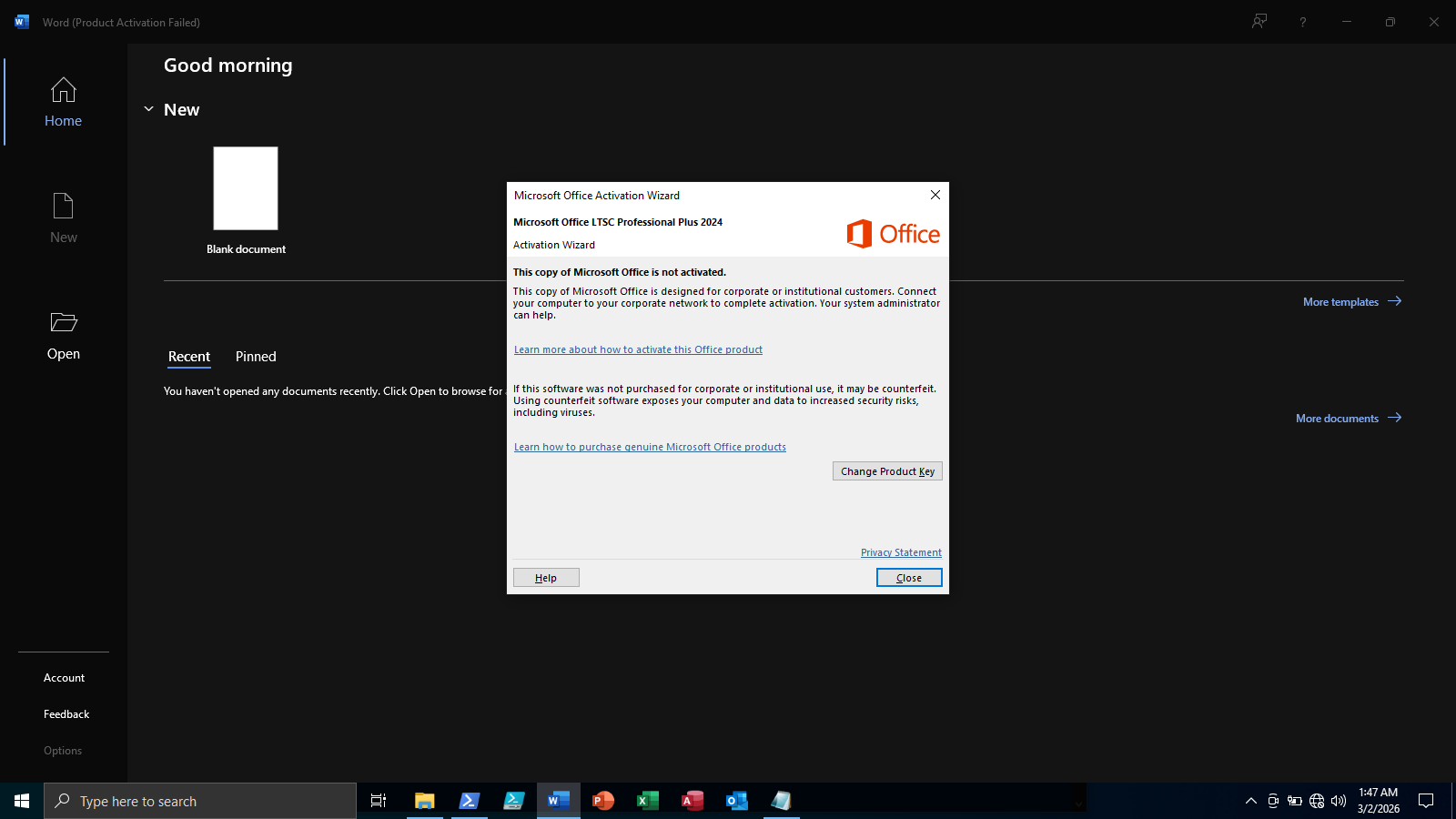
Seeing the “Product Activation Failed” message in Microsoft Office can be frustrating. When this error appears, applications like Word, Excel, and PowerPoint may enter reduced functionality mode, meaning you can view documents but cannot edit them or you won't be able to save your work.
This problem usually happens when Office cannot verify its license. In this guide, we’ll explain why this error occurs and how to fix it quickly.
What Does “Product Activation Failed” Mean?
When Office shows Product Activation Failed, it means the software cannot confirm that your copy is properly licensed through Microsoft.
Common symptoms include:
-
A red Product Activation Failed message in the title bar
-
“Unlicensed Product” warnings
-
Disabled editing features
-
Frequent activation prompts
Common Causes of the Error
1. Expired Microsoft 365 Subscription
If you use Microsoft 365, your subscription may have expired.
To check:
-
Go to account.microsoft.com
-
Sign in with your Microsoft account
-
Check your subscription status
Renewing the subscription usually restores activation immediately.
2. Signed in With the Wrong Microsoft Account
Sometimes users install Office using one account but sign in with another.
To fix this:
-
Open Word or Excel
-
Go to File → Account
-
Check the signed-in account
-
Sign out and sign back in with the correct account
3. Multiple Versions of Office Installed
Having multiple Office versions on the same computer can cause activation conflicts.
The activation service may fail because it cannot determine which version should be licensed.
Make sure to Remove older versions before reinstalling.
4. Corrupted Office Licensing Files
Sometimes the activation files inside Windows become corrupted. This can happen after system updates, interrupted installations, activation errors.
When this happens, Office cannot verify the license and displays the activation error.
5. Broken Office Installation
A damaged installation can also prevent activation.
Symptoms include office apps crashing, update failures and missing components.
How to Fix “Product Activation Failed”
Try the following solutions in order.
Fix 1: Sign Out and Sign Back In
-
Open any Office app
-
Click File
-
Select Account
-
Click Sign Out
-
Restart the app and sign in again
This refreshes the license information.
Fix 2: Check Your Subscription Status
If you use Microsoft 365:
-
Visit account.microsoft.com/services
-
Check whether your subscription is active
-
Renew if necessary
Fix 3: Run an Office Repair
Windows includes a built-in repair option for Office.
Steps:
-
Open Control Panel
-
Go to Programs and Features
-
Find Microsoft Office
-
Click Change
-
Choose Online Repair
This reinstalls missing files and often fixes activation issues.
Fix 4: Remove Multiple Office Installations
If you previously installed several Office versions, uninstall them first.
Steps:
-
Open Settings → Apps
-
Uninstall all Microsoft Office versions
-
Restart the computer
-
Install Office again from the official installer
Fix 5: Reinstall Office Completely
If the problem persists, reinstall Office using a clean installer.
The safest way is downloading from the official source or using the Office Deployment Tool to install a fresh copy.
When Activation Errors Are Caused by Broken Installations:
In many cases, activation errors happen because Office was not removed completely before reinstalling.
Leftover files, registry entries, or activation data can confuse the installer and prevent proper activation.
If reinstalling Office still doesn’t fix the problem, you may need to completely remove all Office components before installing again. You can do that with my Office Remover tool
Final Thoughts
The “Product Activation Failed” error in Microsoft Office usually happens because of licensing issues, expired subscriptions, or corrupted installations.
Most users can fix it by:
-
signing in with the correct account
-
repairing Office
-
reinstalling the software properly
Using official installers and keeping your Office subscription active will help prevent activation problems in the future.