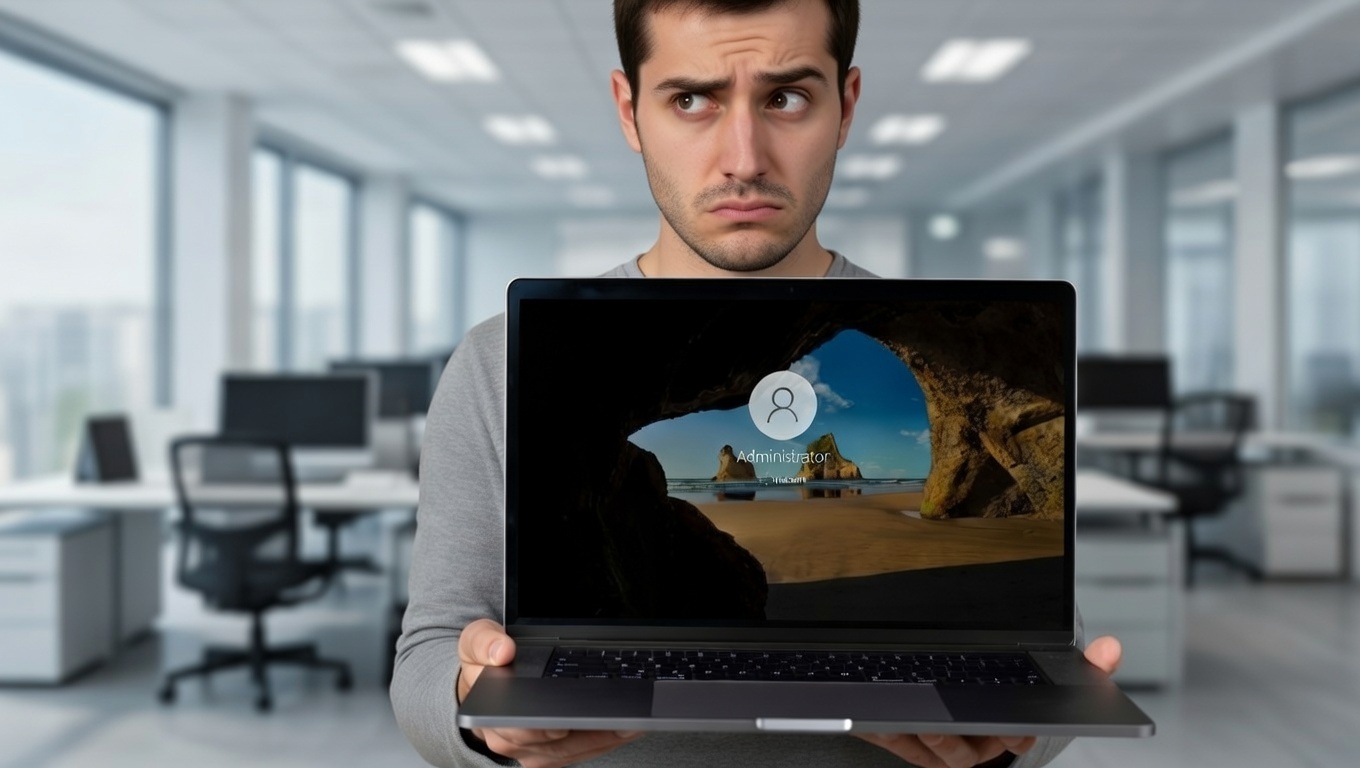
A lot of people leave their account name on Windows PCs with default names, especially if the laptop was set up by a seller, a colleague, or an “IT guy” in a hurry. Sometimes it’s not even malicious, it’s just lazy setup. But the end result is always the same: your PC doesn’t look like it belongs to anybody.
If your Windows login screen is still saying “HP”, “Dell”, “Admin”, or “User”, it feels like a public property.
This small thing feels like “aesthetic choices” until the day it becomes a real problem. Putting your real name and your avatar (your picture) on your Windows lock screen/login screen is one of those tiny tweaks that saves you stress later.
Here are three reasons why you should put your name and picture on your Windows PC
1. Personalization makes "your PC" feel like your PC
This one sounds soft, but it matters more than people admit. When your lock screen shows your name and your picture, it stops feeling like a shared kiosk computer and starts feeling like “this is my workspace”. It's literally your PC, why shouldn't your name be on the login screen.
Practically, it also helps you notice when something is off. If you normally see your face and your name, and suddenly you’re seeing “Admin” with a generic avatar or something else you didn't set, your brain immediately goes, “Wait, who’s that?” That little awareness is useful.
Also, if you share a computer at home or in a small office, proper names and pictures reduce the daily friction of “Which account should I click?” The less you guess, the less you misclick, the less you lock yourself out for no reason.
2. It helps with identification and ownership when things get messy
The name and the picture on the login screen is the first evidence of ownership, not in a legal sense but hey, that is your PC, that is your name on the login screen right there. It is yours.
What if you misplace your laptop?
What if you forgot your password?
Personalization helps a lot with identification when you’re dealing with humans and real-world chaos. When someone brings a laptop for repair, the first sign that it may be a stolen laptop is when the name and picture looks nothing like the person who brought it in. Someone may seek the help of a professional to gain undue access to a computer. It becomes hard to catch when the name and the picture the actual owner set is just generic or random.
If you manage multiple accounts, proper name and picture helps to clarify purpose. Your name and photo make it obvious. If someone else is helping you, like a colleague or an IT person, it’s easier to say, who owns what and what needs fixing without playing guessing games.
If your laptop gets misplaced and a decent human being finds it, seeing a real name on the login screen makes it easier for them to figure out who it belongs to and how to return it, especially if there’s a company name or email hint tied to the account.
Basically, it’s not “proof” in a legal sense, but it’s strong everyday identification. And in tech support, clarity is half the battle.
3. Generic account names make attacks easier to aim
This part is the security angle people don’t like to hear, because it sounds like paranoia. But it’s just basic attacker behavior: if someone is trying to break into a Windows PC or a work laptop, knowing the username is one less problem for them.
Usernames like “admin”, “administrator”, “user”, or “guest” are the first things attackers try because they’re common and predictable. If you combine that with a weak password (or reused password), you’ve basically reduced the work they need to do.
To be clear, your account name alone isn’t what “secures” your PC. Security is mostly your password quality, whether you’re using a Microsoft account with MFA, whether your device is encrypted, and whether you’re running day-to-day as admin. But using a generic name is like leaving your front gate wide open and saying, “Don’t worry, my door is locked.” Why help them?
And there’s another sneaky thing: generic accounts blend in. If somebody creates a new local admin account on a PC and names it something boring like “Admin2” or “Support”, it’s easier for it to hide in plain sight when all your accounts already look like that.
How to change your name and picture on Windows (without turning it into a project)
On Windows 10 or Windows 11, the fastest path is usually through Settings. Open Settings, go to Accounts, then look for Your info. That’s where you can add or change your account picture.
If you’re using a Microsoft account to sign into Windows, changing your profile picture may take you through your Microsoft account profile, and it can reflect across Microsoft services. If you’re using a local account, you can still set a picture right there on the PC.
For the name, it depends on what kind of account you’re using. Local accounts can typically be renamed on the machine. Microsoft accounts usually show the name tied to the Microsoft profile. Either way, the goal is simple: when your login screen shows accounts, yours should clearly be “your actual human name”, not “HP”.
Take two minutes, do it once, and you stop dealing with that low-grade daily annoyance forever.
The takeaway
Your lock screen isn’t just decoration. It’s the front door of your PC. When it clearly shows your name and picture, you get a more personal device, less confusion when you’re logging in or getting help, and you avoid the unnecessary security habit of running around with “Admin” as your identity.
Small change, big peace of mind.