
This issue usually looks like this: your PC boots, you sign in (or it signs in automatically), and then you get a black/blank screen where the mouse cursor moves but nothing else loads.
This guide covers the most common causes and the fastest fixes, starting with the safest steps.

What Causes This Issue
A blank screen with a cursor often means Windows is running, but the desktop interface is not loading correctly. Common reasons include:
-
Windows Explorer (explorer.exe) did not start (so you see no desktop, taskbar, or icons).
-
A graphics driver problem (especially after an update).
-
A broken startup app/service that blocks the desktop from loading.
-
A corrupted Windows profile or system files.
How to Fix It
1) Try the simple display checks
-
Disconnect all external devices except power, keyboard, and mouse (USB drives, printers, docking stations).
-
If you are using an external monitor, unplug and reconnect the display cable, then try a different port (HDMI/DP).
-
Press Windows + P, then press the Up/Down arrow and press Enter to switch display modes (sometimes it is outputting to the wrong screen).
2) Reset the graphics driver
-
Press Windows + Ctrl + Shift + B.
-
Wait a few seconds.
If the screen flashes or beeps, Windows restarted the graphics driver. This can immediately bring the desktop back.
3) Use Ctrl + Shift + Esc to open Task Manager and restart Explorer
This is the most common fix when Windows loads but the desktop does not.
-
Press Ctrl + Shift + Esc.
-
Scroll down to find Windows Explorer.
-
Select Windows Explorer and click Restart Task.
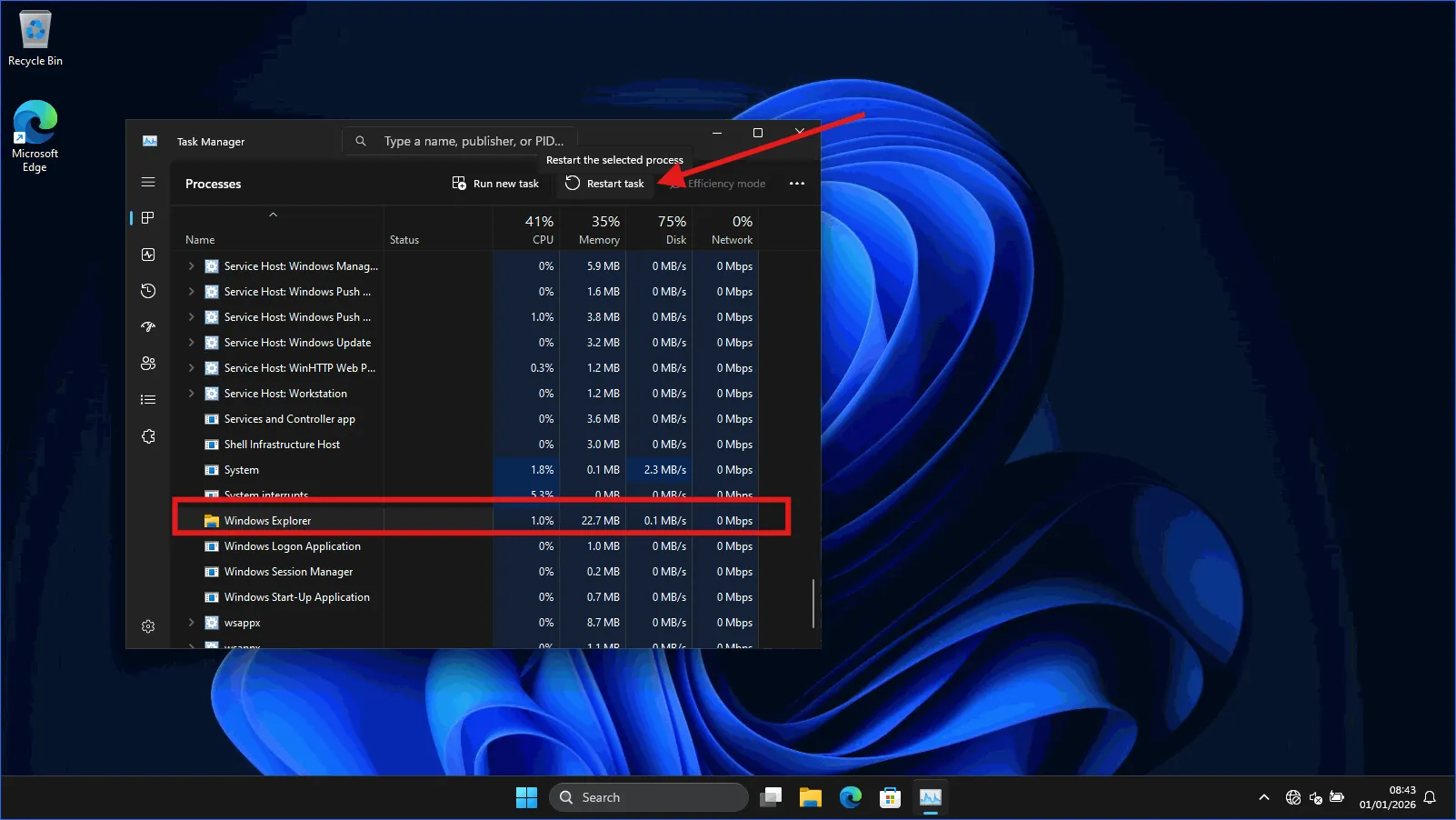
4) If Windows Explorer stops but didn't restart
- Click File → Run new task.
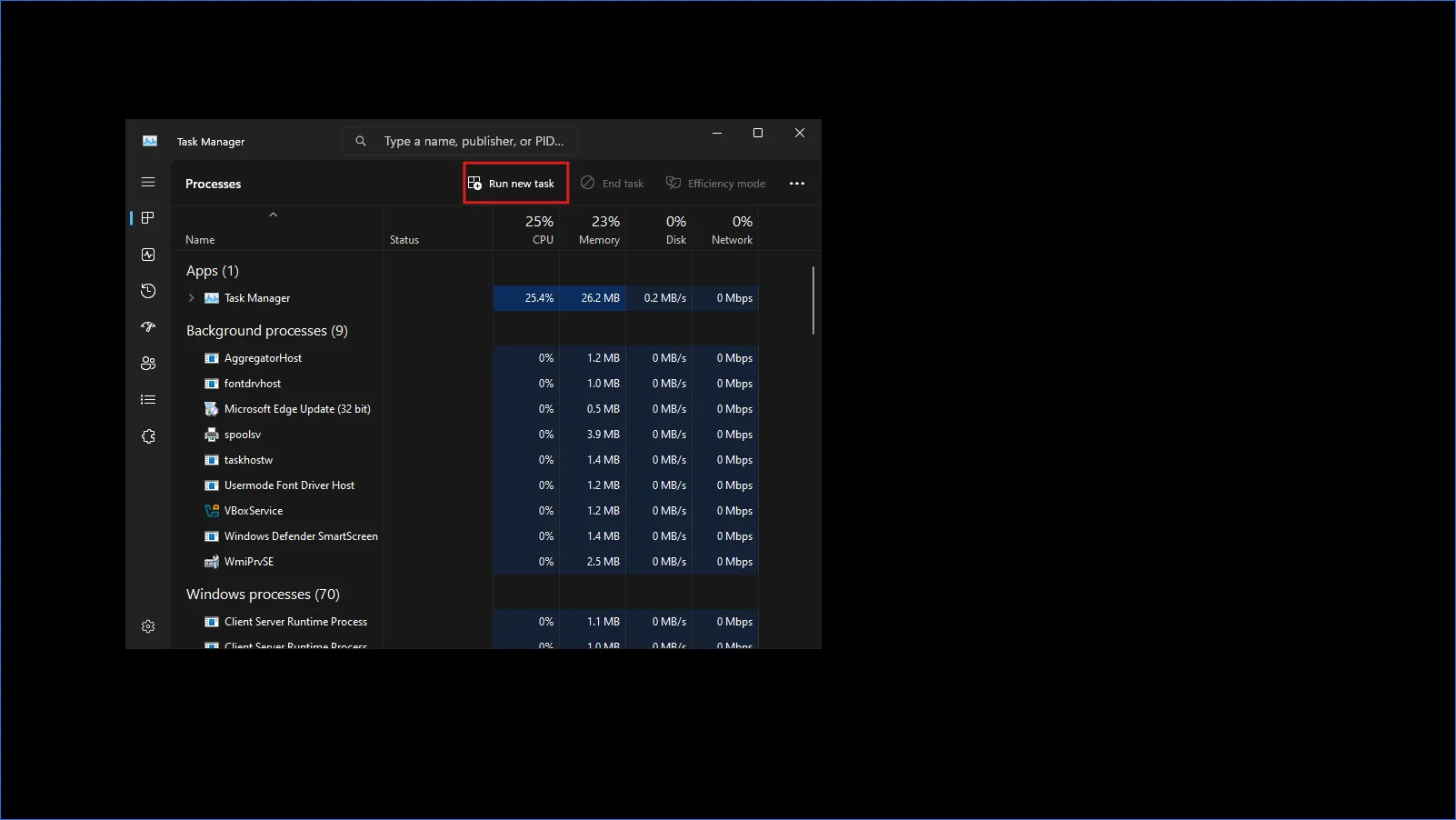
-
Type:
explorer.exe -
Check Create this task with administrative privileges (if shown), then click OK.
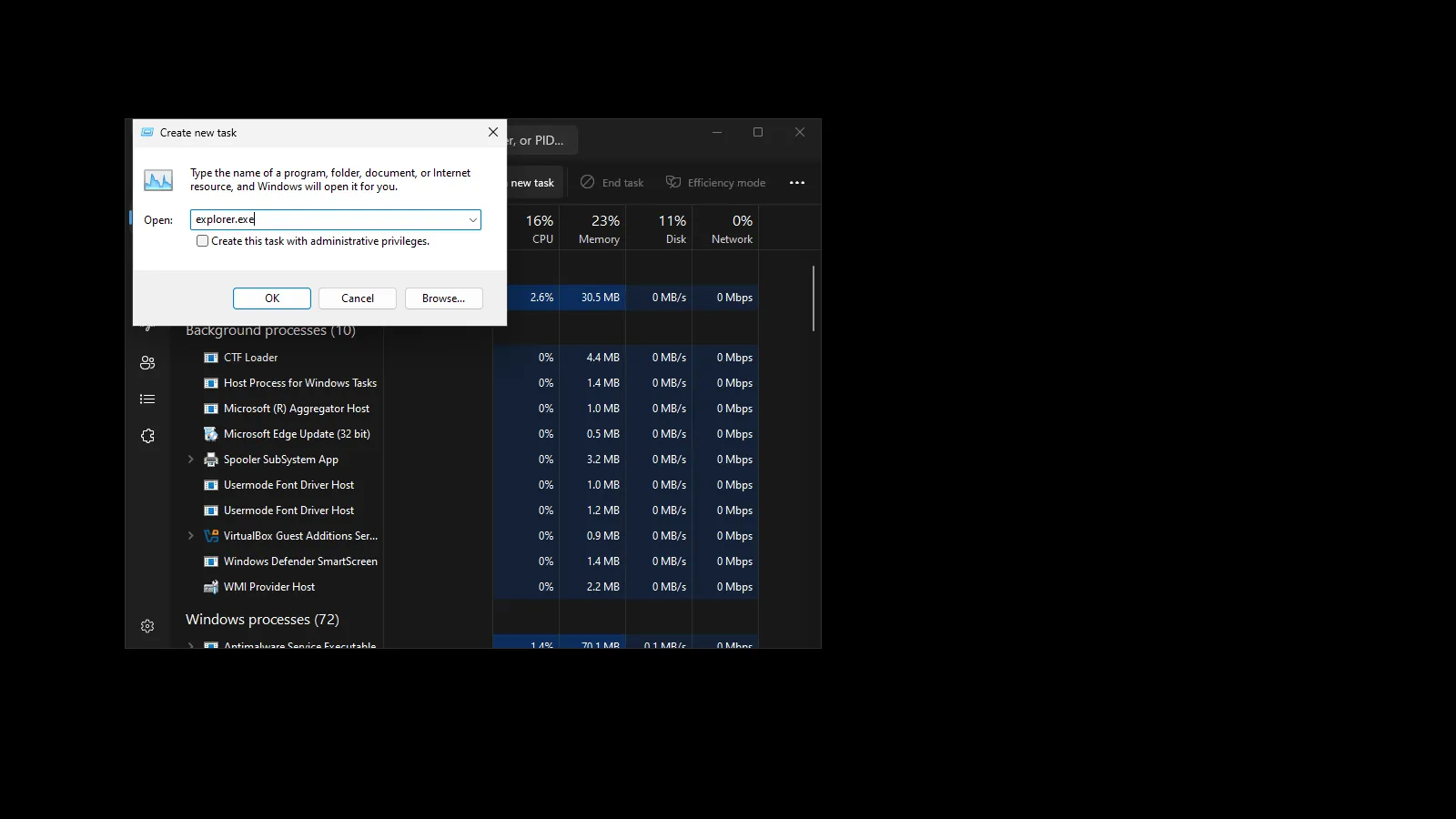
If the desktop and taskbar appear, the issue was Explorer not launching properly.
5) If Explorer will not start and you get “Windows cannot find ‘explorer.exe‘”
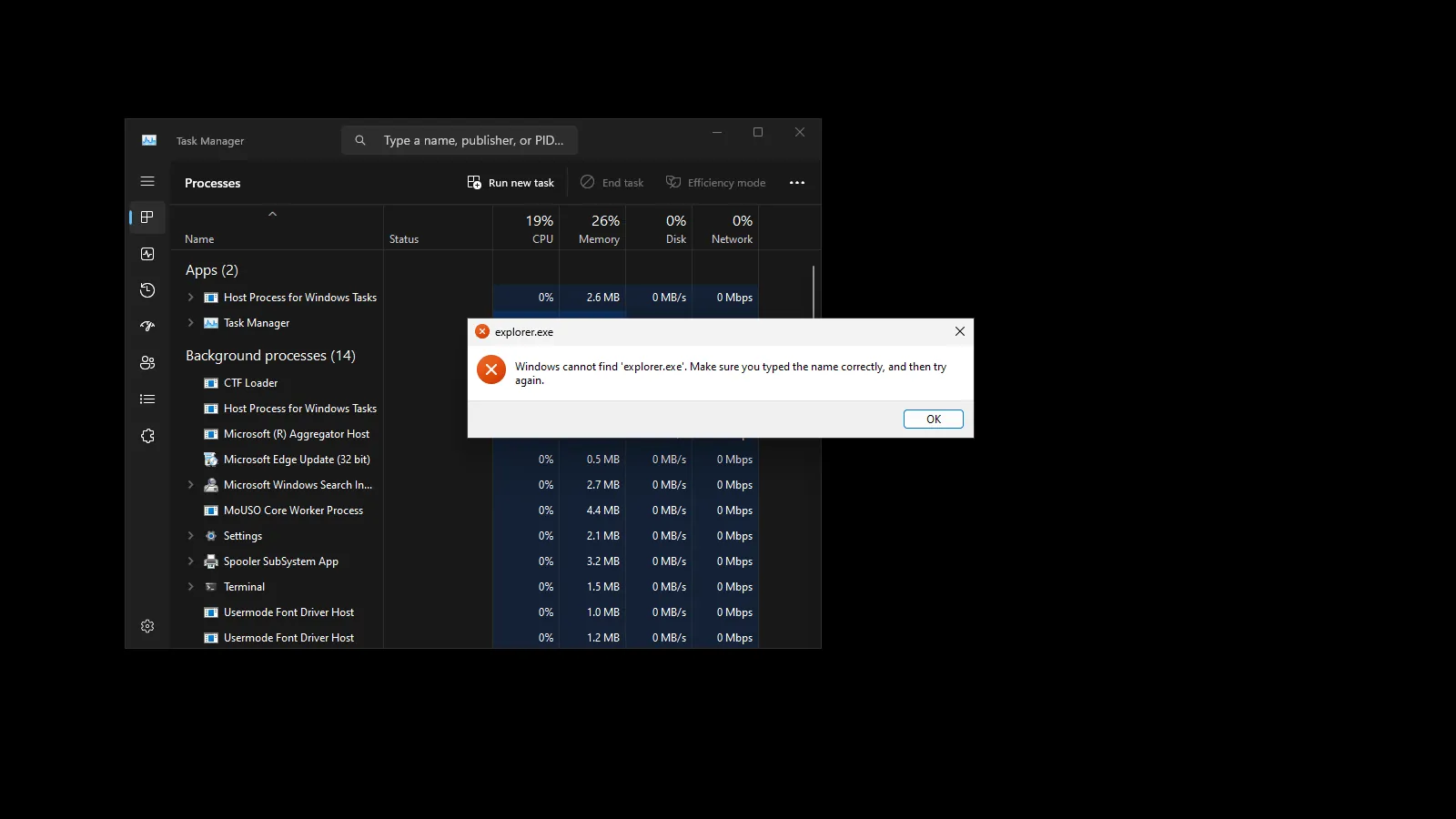
If you try Task Manager → File → Run new task → explorer.exe and you see an error like:
“Windows cannot find ‘explorer.exe’. Make sure you typed the name correctly, and then try again.”
…it usually means Windows system files are corrupted or missing. Do this repair sequence, then try starting Explorer again.
-
Press Ctrl + Shift + Esc → open Task Manager.
-
Click File → Run new task.
-
Type:
powershell.exe -
Tick Create this task with administrative privileges and click OK.
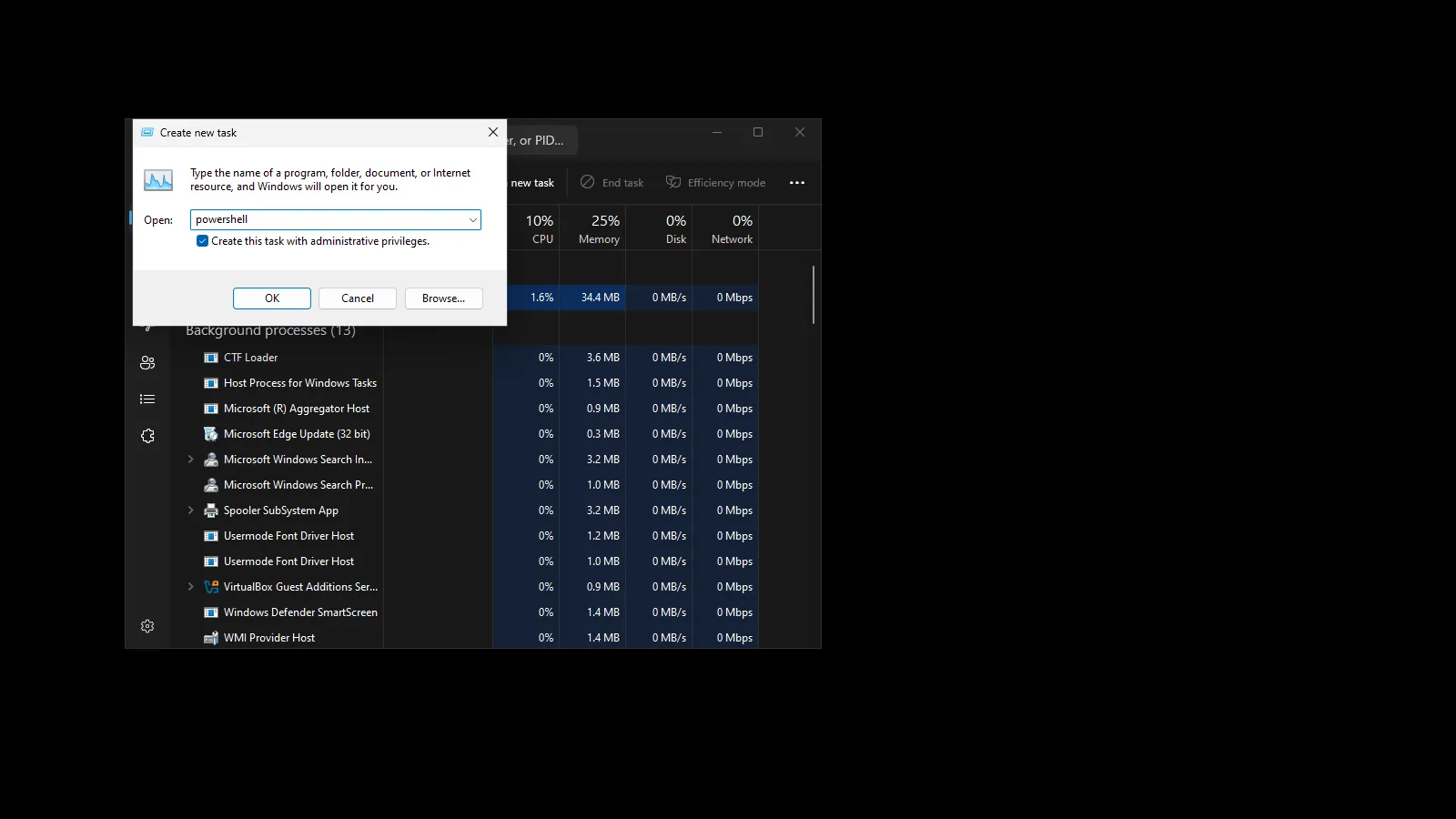
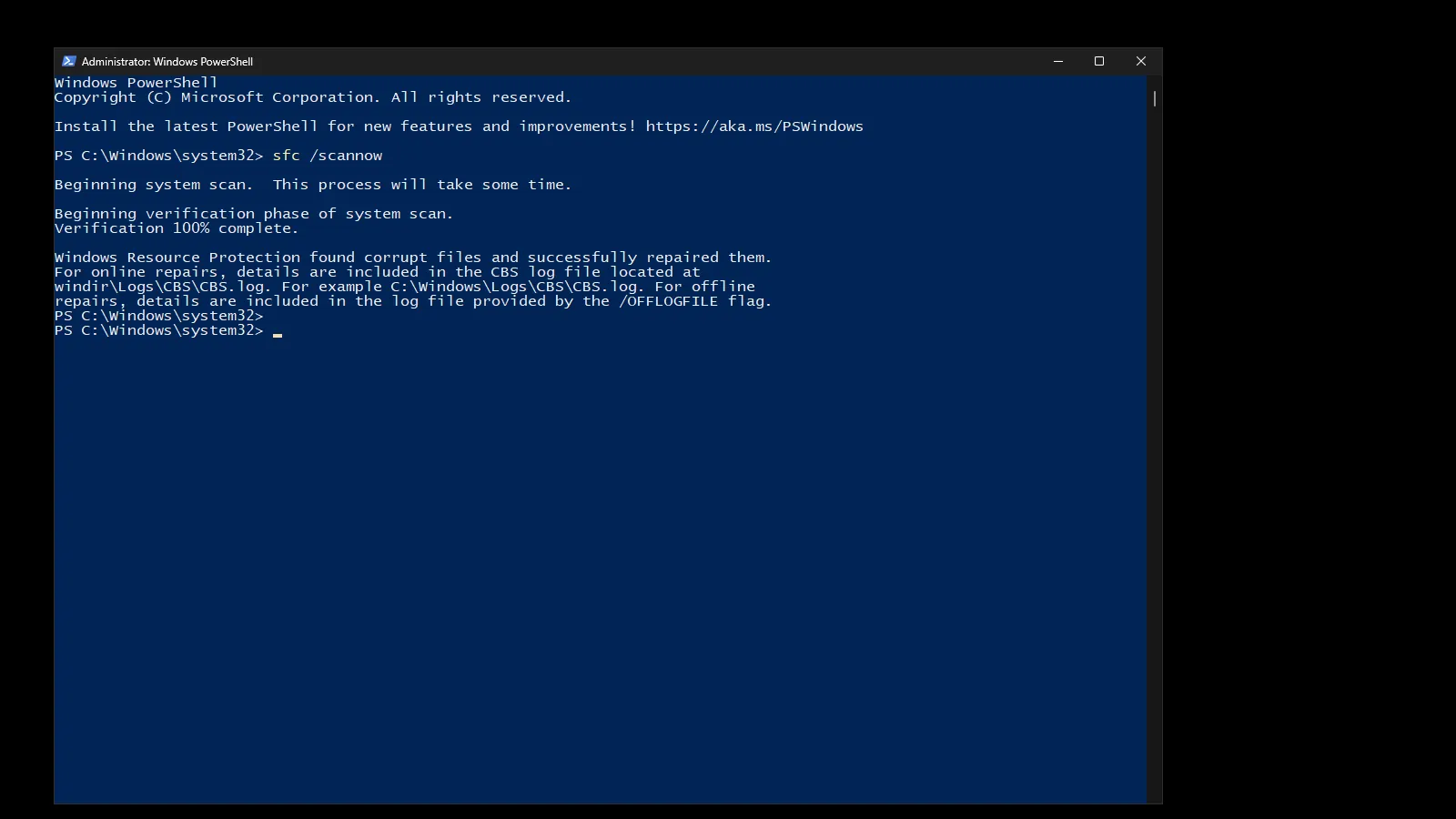
- In the PowerShell window, run this in order:
sfc /scannow
Then:
DISM /Online /Cleanup-Image /RestoreHealth
Then run SFC again:
-
Restart your PC.
-
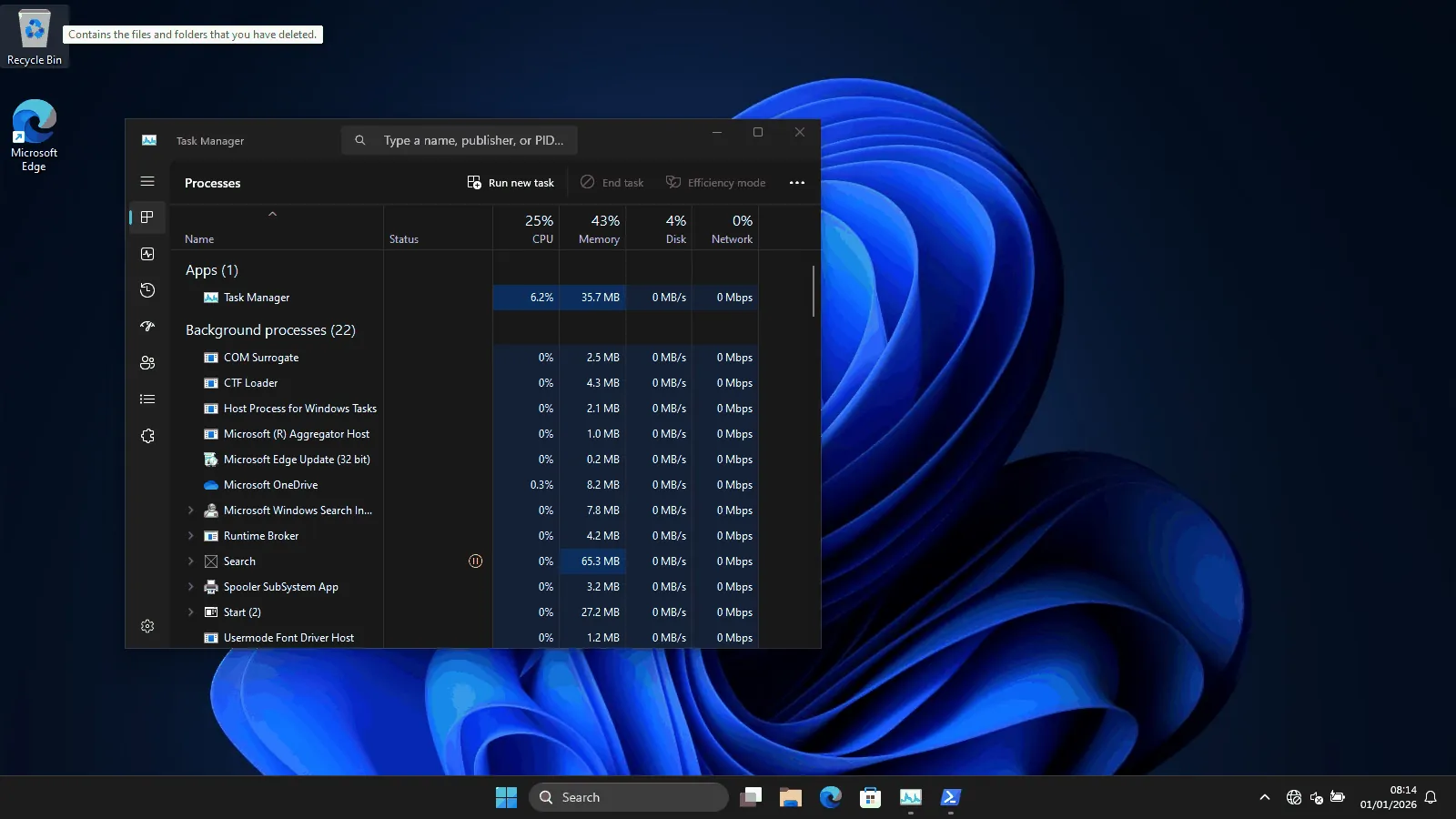
After restart, open Task Manager again → File → Run new task → type
explorer.exe→ OK.
6) Try System Restore
If System Restore was enabled, it can roll Windows back to a working state.
-
Boot into WinRE.
-
Go to Troubleshoot → Advanced options → System Restore.
-
Pick a restore point from before the issue started.
If these steps doesn't fix the issue, it may have deeper causes that needs advanced troubleshooting and fixes. Use the links below to request for Professional Support Services.