
A repair install (also called an in-place repair) reinstalls Windows over itself to fix corrupted system components while keeping your files and (usually) your installed apps. An in-place upgrade is the same process, but you install a newer Windows version/build (for example moving from Windows 10 to Windows 11, or moving from an older Windows 11 release to a newer one like 24H2/25H2 if available for your device).
The key detail that makes this work: you normally run it from inside Windows by launching setup.exe from an ISO (or from a USB’s files). Booting from the USB is typically for clean installs and does not give the same “keep my apps” results.
What this will help you fix
This method is useful when Windows is still able to boot, but is unstable or “damaged”, such as:
-
Windows Update failing repeatedly
-
Windows Security/Defender problems that survive normal fixes
-
System apps crashing, Settings not opening, missing system components
-
Random errors that feel like corruption rather than one bad app
If Windows cannot boot at all, this guide may not apply; you will usually need recovery tools or a clean install.
Repair install vs in-place upgrade
Repair install
You install the same major Windows version over itself.
-
Windows 10 → Windows 10
-
Windows 11 → Windows 11
Goal: repair Windows components without changing “Windows Version”.
In-place upgrade
You install a higher version than what you currently have.
-
Windows 10 → Windows 11
-
Windows 11 (older release) → Windows 11 (newer release, for example 24H2/25H2 if that’s the ISO you use and your device supports it)
Goal: upgrade while still keeping files/apps (when you choose the keep options).
Before you start
-
Back up important files. This process is designed to keep your data, but you should still back up anything important before major system changes.
-
Confirm your edition and version: Settings → System → About. You will want installation media that matches your edition and language (for example, Windows 11 Pro vs Home).
-
Free up space: Aim for at least 25–30 GB free on the Windows drive.
-
Suspend BitLocker/device encryption if enabled (recommended), and make sure you know your recovery key.
-
Uninstall or temporarily disable third-party antivirus if it has been interfering with system changes.
-
Keep your PC plugged into power (especially laptops).
Step-by-step: Repair install or in-place upgrade using an ISO
1) Download the correct ISO from Microsoft

Download a Windows ISO directly from Microsoft:
Choose the ISO that matches what you want to do:
-
Repair install: same Windows generation (10-on-10, 11-on-11)
-
In-place upgrade: newer version/build you want to move to
2) Mount the ISO in Windows
-
Find the ISO you downloaded in File Explorer.
-
Right-click it and select Show more options (Windows 11) → Mount.
-
Windows will create a new “DVD drive” in File Explorer.
3) Run Windows Setup from inside Windows
-
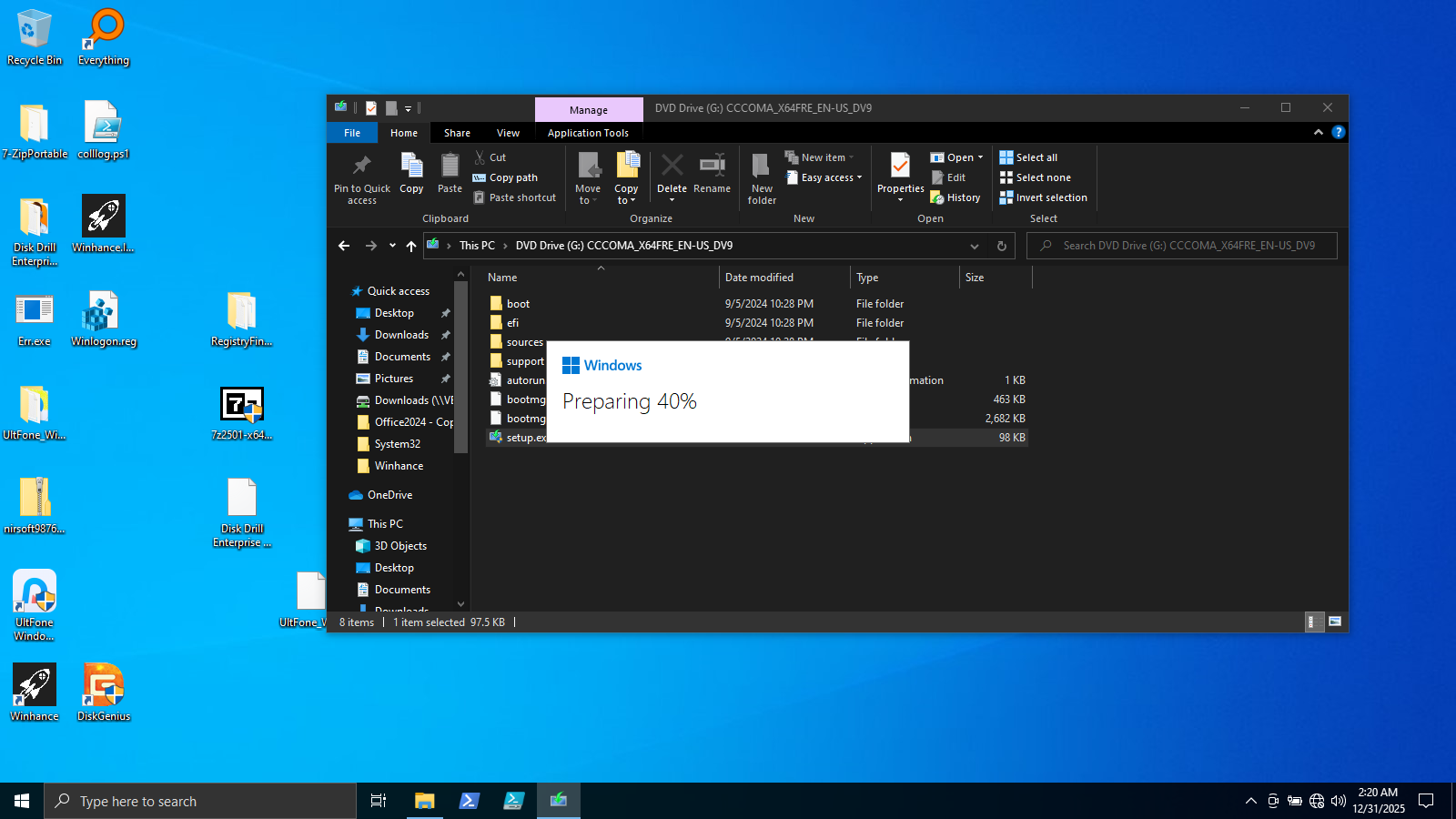
Open the mounted ISO drive.
-
Double-click setup.exe.
-
If prompted by User Account Control, select Yes.
4) Choose update options (recommended)
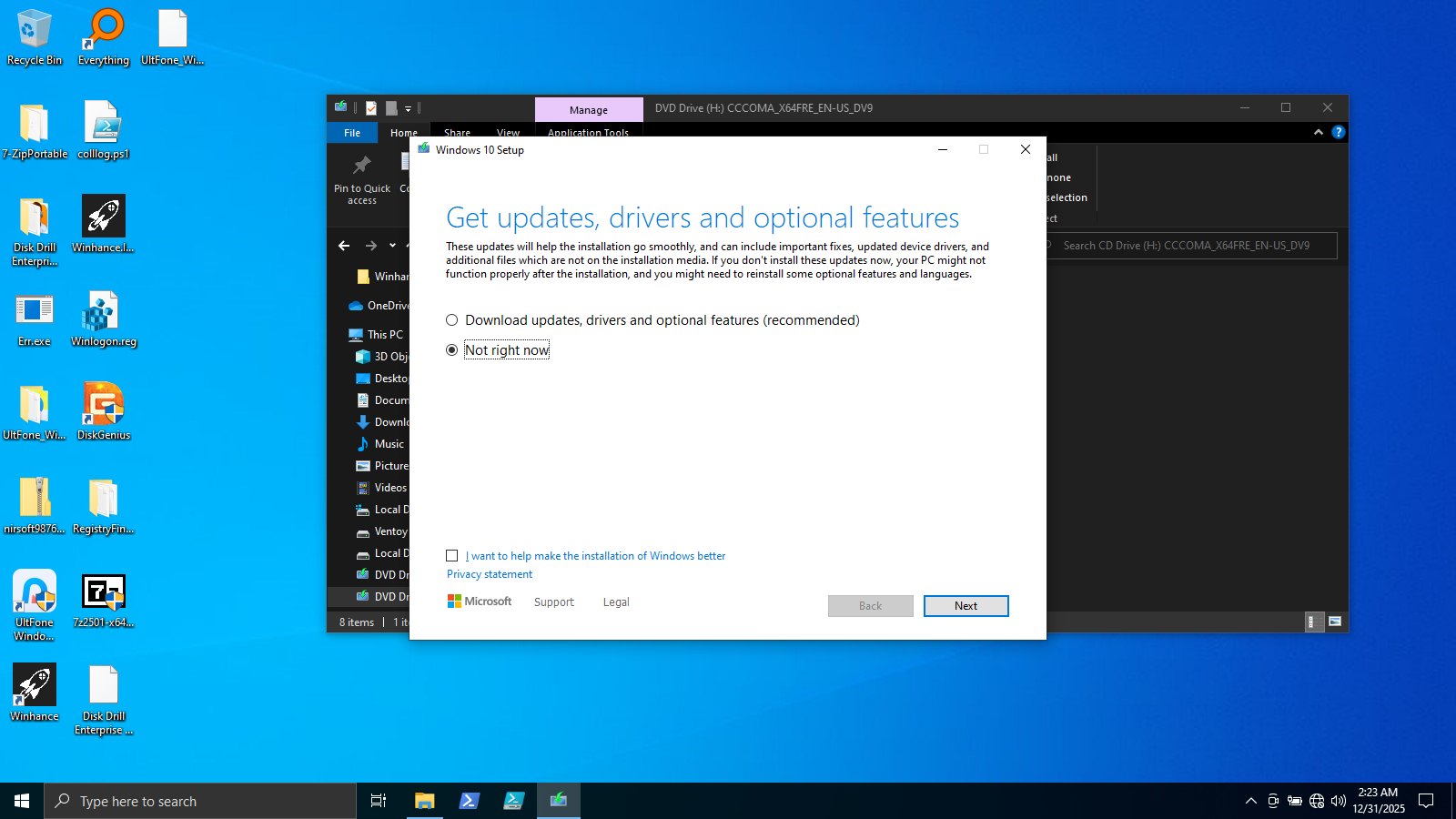
Windows Setup will ask whether it should download updates during installation. In most cases, choosing the option that allows updates is fine, but if your internet is unstable, you can choose “Not right now” and update later.
5) Choose what to keep

This is the most important screen.
-
For a repair install: choose Keep personal files and apps (when available).
-
If you only see Keep personal files or Nothing, it usually means there is a mismatch (edition/language/build) or Setup was started in a way that cannot preserve apps.
6) Start the install

-
Confirm your selections.
-
Click Install.
-
Your PC will restart multiple times.
7) After Windows finishes
-
Sign in and let Windows settle for a few minutes.
-
Go to Settings → Windows Update and install updates.
-
Re-enable BitLocker/device encryption if you suspended it.
-
Confirm your issue is resolved (Defender opens, Updates work, No errors etc.).
Notes if you are using a USB
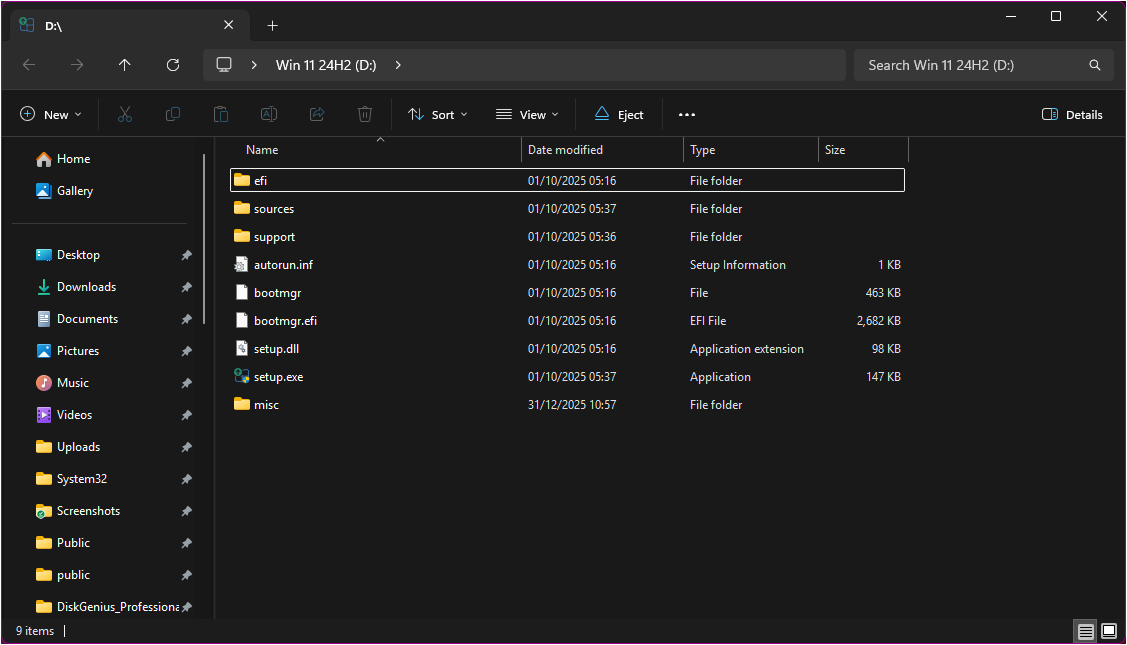
If you already have a Windows USB, you can still do a repair install/in-place upgrade as long as you open the USB in File Explorer and run setup.exe from inside Windows. Booting from the USB is a different path and is mainly used for clean installs and recovery. The rest of the setup process is similar to using ISO.
If it fails or the “Keep apps and files” option is missing
-
Re-check that the ISO matches your Windows edition and language.
-
Ensure you started Setup from inside Windows (not by booting).
-
Run system repair commands, restart, then try again:
-
sfc /scannow -
DISM /Online /Cleanup-Image /RestoreHealth
-
If the install repeatedly fails or Windows is too unstable to complete Setup, the next step is usually a clean install or technician-assisted recovery.
If you want a technician to handle it
If you want me to do this with you (remote or in-person depending on your setup), send:
-
Your current Windows version (10/11 + edition)
-
What you are trying to do (repair install or upgrade to a specific release)
-
Any error message/code you see during Setup