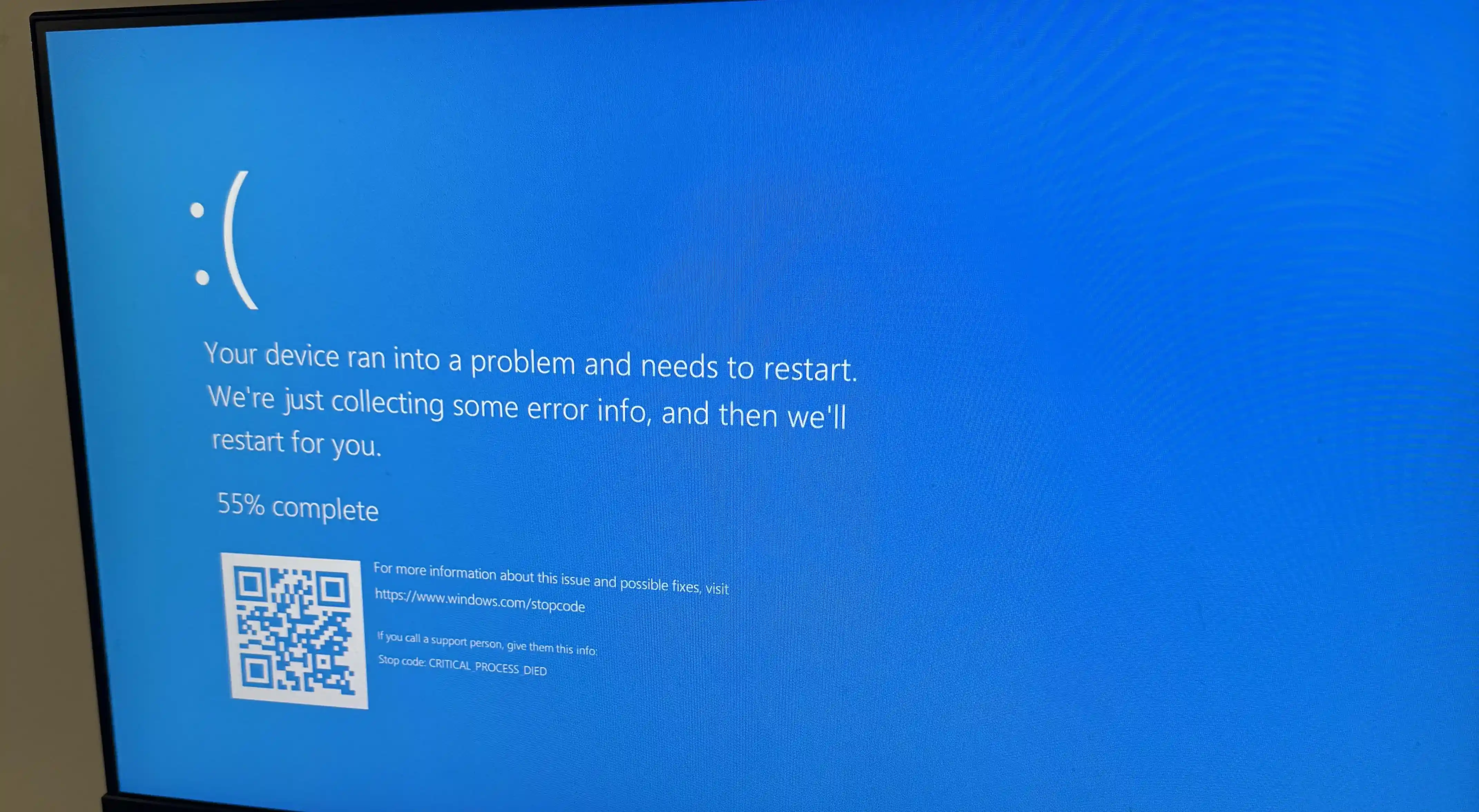
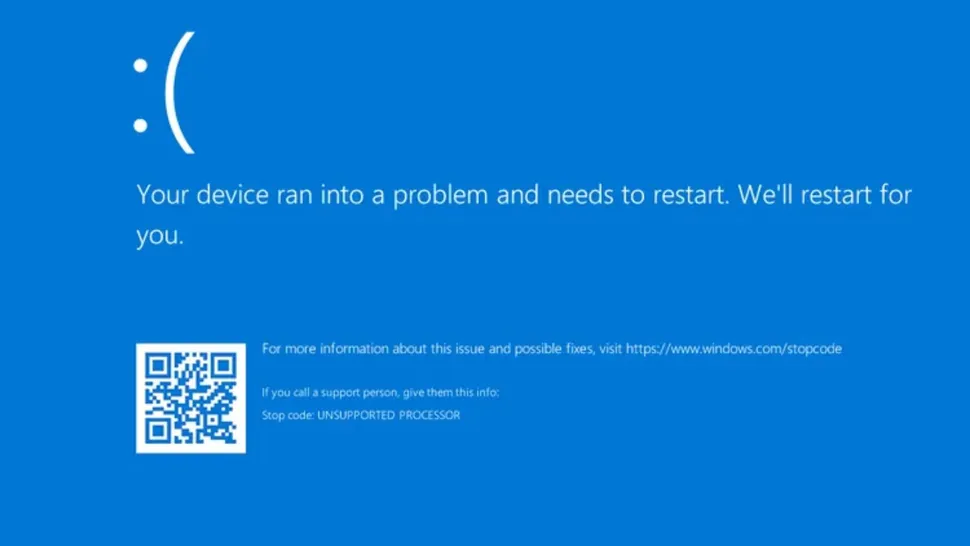
A Blue Screen of Death (BSOD) is a Windows crash screen that appears when the system hits a serious error and must restart. This guide helps you narrow down the cause and apply the safest fixes first.
What This Usually Means
Most BSODs are caused by one of these:
-
A bad or incompatible driver (common after installing hardware, software, updates, or drivers)
-
A failing or corrupted Windows system file
-
Disk problems (SSD/HDD errors)
-
Memory (RAM) problems
-
Overheating or unstable power
-
Security software conflicts
Before You Start
-
If the PC still boots sometimes, take a photo of the BSOD showing the stop code and any file name (for example
nvlddmkm.sys). -
Use BlueScreenView to quickly see what Windows recorded as the likely cause. Install it, open it, and it will automatically read your crash “minidump” files. Pay attention to Bug Check String, Bug Check Code, and Caused By Driver. This is not perfect proof (drivers can be blamed indirectly), but it gives you a strong starting point.
BlueScreenView (NirSoft): -
Fetch the dump files so you can send them to a technician if needed. The common locations are:
C:\Windows\Minidump\(small crash dumps) andC:\Windows\MEMORY.DMP(full/kernel dump, can be large).
Copy them to your Desktop, right‑click → Send to → Compressed (zipped) folder, then attach the ZIP when messaging support/your technician. Dump files contain information about the crash and allows faster troubleshooting. -
Disconnect non‑essential devices (USB drives, printers, docking stations) before you start troubleshooting.
How to Resolve BSODs
1) Do the quick reset steps
-
Turn the PC off completely.
-
Unplug all external devices except keyboard/mouse (and power).
-
Turn the PC back on.
If the BSOD started after plugging in something new (USB adapter, external drive, new keyboard/mouse), this can immediately isolate the cause.
2) Note the stop code and recent changes
-
Write down the Stop code.
-
Think about what changed recently:
-
New driver update (especially graphics/Wi‑Fi)
-
Windows Update
-
New app (VPN, antivirus, “driver booster”)
-
New hardware (RAM, SSD, GPU)
-
This helps you choose the correct rollback step later.
3) If Windows boots: install Windows Updates
-
Open Settings → Windows Update.
-
Install all available updates.
-
Restart.
Windows Update can include fixes for stability and driver issues.
4) If Windows boots: update or roll back drivers
Drivers are a top BSOD cause.
-
Right-click Start → Device Manager.
-
Expand categories (Display adapters, Network adapters, Storage controllers).
-
If the BSOD started after a driver update, right-click the device → Properties → Driver → Roll Back Driver (if available).
-
If the driver is old, update it from the PC manufacturer’s support page (or the GPU vendor page for graphics).
5) Start Windows in Safe Mode (if BSOD keeps happening)
Safe Mode loads Windows with minimal drivers, which can help you remove the problem driver/app.
-
Open Settings → System → Recovery.
-
Under Advanced startup, select Restart now.
-
Choose Troubleshoot → Advanced options → Startup Settings → Restart.
-
Press 4 for Safe Mode or 5 for Safe Mode with Networking.
Once in Safe Mode, uninstall any recently added apps/drivers (especially antivirus/VPN/driver tools), then restart normally.
6) Run built-in system repairs (SFC and DISM)
Corrupted Windows system files can trigger BSODs.
-
Open Command Prompt (Admin) or Windows Terminal (Admin).
-
Run:
sfc /scannow -
Restart when it finishes.
If SFC reports it could not fix some files, run DISM (then run SFC again):
-
In Admin Command Prompt, run:
DISM /Online /Cleanup-Image /RestoreHealth -
After it completes, run:
sfc /scannow
7) Check the disk for errors
Disk errors can cause crashes, especially if Windows system files are affected.
-
Open Command Prompt (Admin).
-
Run:
chkdsk C: /f -
If prompted, allow it to run on restart, then reboot.
8) Test memory (RAM)
Faulty RAM commonly causes BSODs like MEMORY_MANAGEMENT.
-
Open Start, search Windows Memory Diagnostic, and open it.
-
Choose Restart now and check for problems.
9) Use System Restore (if the problem started recently)
System Restore can roll Windows system files and drivers back to a previous working state.
-
Open Control Panel → Recovery → Open System Restore, or access it from Advanced startup.
-
Pick a restore point dated before the BSOD started.
If Windows Will Not Boot At All
If the BSOD happens before you can log in, use Windows Recovery Environment (WinRE):
-
Enter WinRE using Advanced startup (or boot from a Windows installation USB and choose Repair your computer).
-
Try Startup Repair first.
-
If needed, try Uninstall Updates or System Restore from Advanced options.
When to Escalate
Stop repeated troubleshooting and consider professional help if:
-
BSODs continue after Safe Mode + SFC/DISM + CHKDSK.
-
The PC randomly freezes, the drive disappears, or CHKDSK reports serious disk issues.
-
Memory diagnostics report errors.
-
The PC overheats, shuts down under load, or smells/buzzes unusually.
Hardware problems (SSD/HDD, RAM, power, overheating) can make software fixes ineffective.
If You Want a Technician to Handle It
If you would like me to troubleshoot it properly, send:
-
A photo of the BSOD showing the stop code and any .sys file name
-
Your Windows version (10 or 11)
-
What changed just before the problem started (update, driver, new app, new hardware)
Contact: Firxttech for Windows support.