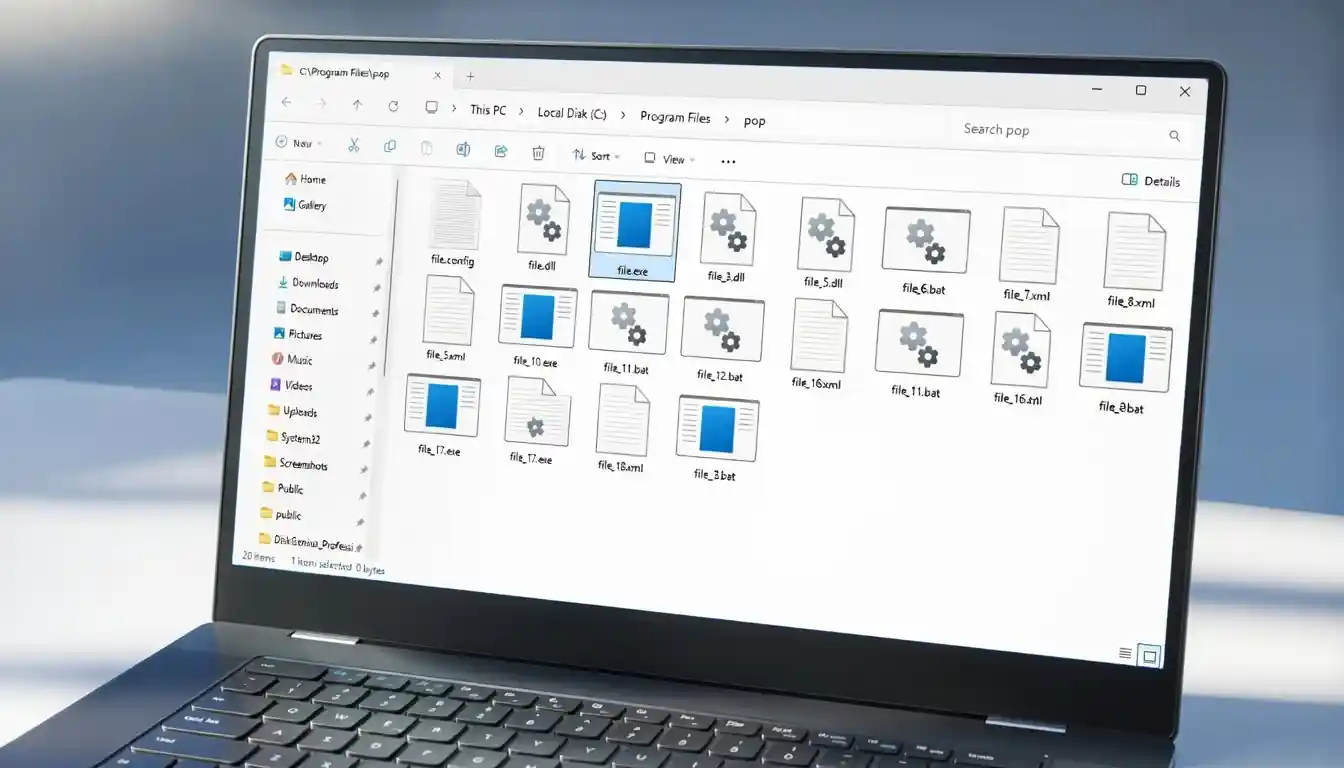
When you uninstall a program, Windows may remove the main app but leave “stale files” behind. This guide shows you how to find and remove them safely.
What Are Stale Files?
Stale files are leftovers from an app you already uninstalled. They usually include leftover folders, settings, cache files, logs, shortcuts, background tasks, and registry entries that the uninstaller did not remove.
They often live in places like Program Files, AppData, ProgramData, Startup entries, and the Windows Registry.
Why Stale Files Can Be a Problem
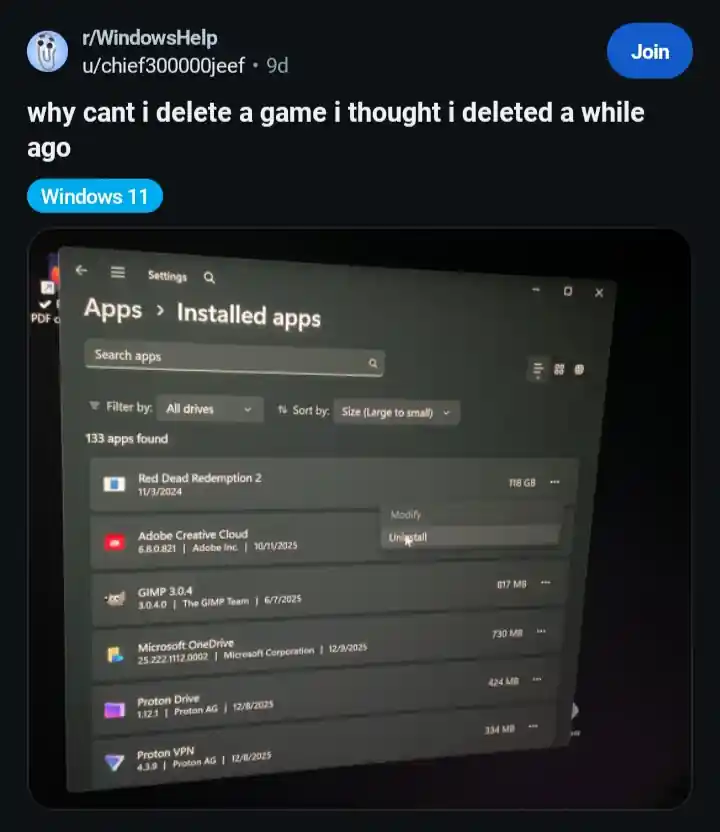
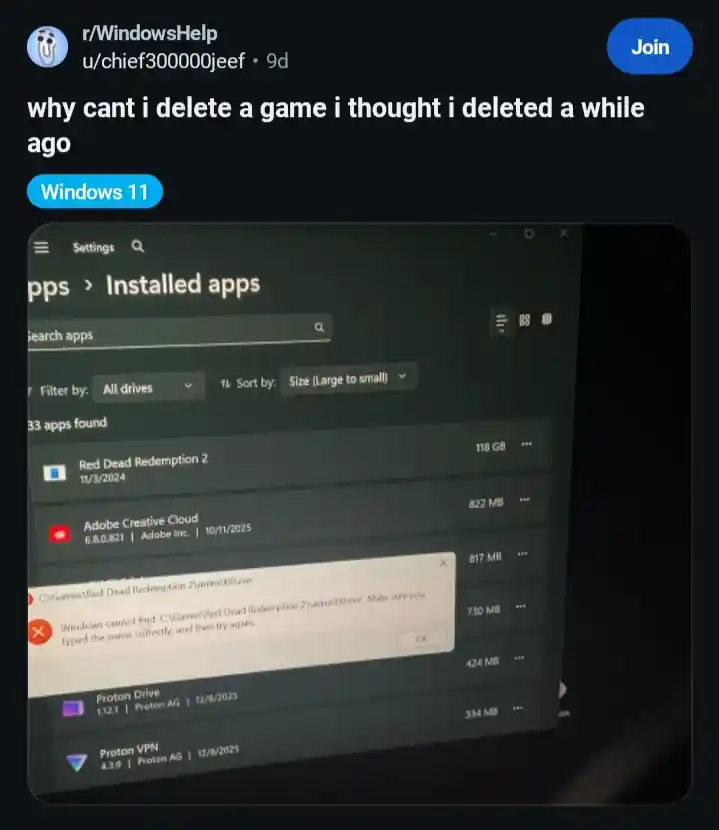
Stale files are not just “extra folders.” They can cause real annoyances, such as:
They can interfere with reinstalling the same program, because old settings or components may get reused and bring the same problems back.
They can leave junk entries behind, like icons still showing in the right‑click context menu, Open/Save file picker side panels, or “startup” lists.
Sometimes the program still appears in Windows Search, or shows up in Settings → Apps, but when you try to uninstall it again, it fails because the uninstaller is already gone or broken.
They add clutter and waste disk space over time, especially with apps that cache a lot.
In some cases, uninstallers may leave behind background components you did not intend to keep. If you suspect anything unwanted, treat it as a security issue and run a malware scan.
Before You Start
-
Restart your PC. This releases files that were still in use.
-
If you are doing anything “registry-related,” create a restore point first.
-
Do not delete folders unless you are confident they belong to the uninstalled program.
Step 1: Confirm the App Is Uninstalled
-
Open Settings.
-
Go to Apps → Installed apps (Windows 11) or Apps & features (Windows 10).
-
Search for the program name.
-
If it is listed, uninstall it from here.
Step 2: If It Still Shows Up, Reinstall Then Uninstall Again
This is surprisingly effective when you have a “ghost entry” in Installed apps, or when uninstall fails because the uninstaller is missing.
-
Download the installer from the official vendor site.
-
Install the program again (same edition/version if possible).
-
Uninstall it immediately using Settings → Apps.
-
Restart your PC.
This often restores the missing uninstaller files, then removes the app cleanly on the second attempt.
Step 3: Delete Leftover Folders in the Common Locations
-
Open File Explorer.
-
Check these folders and delete only folders clearly named after the app or publisher:
Go to C:\Program Files
Go to C:\Program Files (x86)
Press Windows + R, type %appdata%, press Enter
Press Windows + R, type %localappdata%, press Enter
Press Windows + R, type %programdata%, press Enter -
Empty the Recycle Bin.
Tip: AppData is where many leftovers live (settings and caches), so it is normal to find the most “stale” items there.
Step 4: Remove Leftover Startup Entries
If the uninstalled app still tries to run at startup, it can keep showing up in the background or cause errors.
-
Press Ctrl + Shift + Esc to open Task Manager.
-
Go to Startup apps.
-
Disable anything clearly related to the removed program.
-
Restart your PC.
Step 5: Use Everything to Find Remaining Files Fast
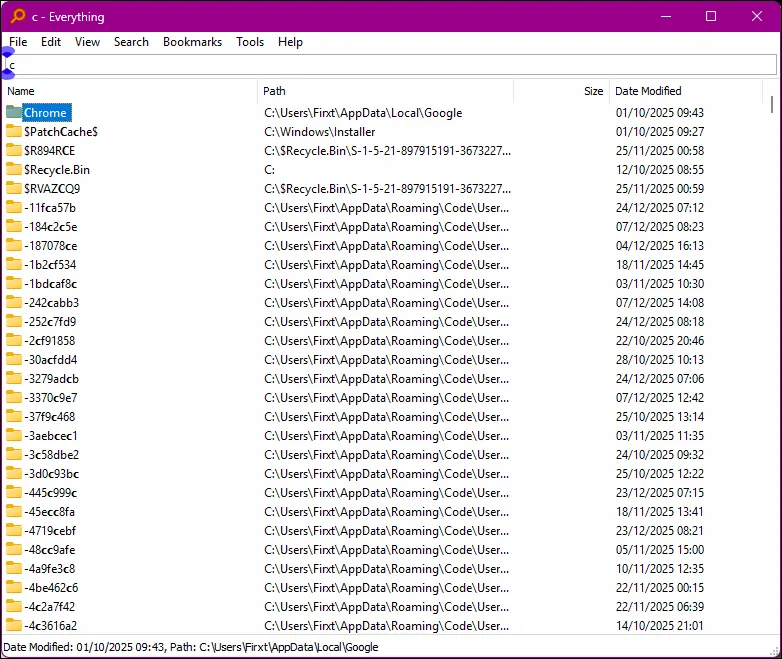
Windows Search can miss a lot. Everything is a lightweight search tool that indexes file and folder names very quickly.
-
Install and open Everything.
-
Search for the program name, publisher name, and common folder names the app used.
-
Review results carefully.
-
Delete leftover folders/files only when you are sure they belong to the uninstalled app.
-
Restart your PC.
Download Everything from their official site:
Step 6: Clean Stale Registry Entries With CCleaner
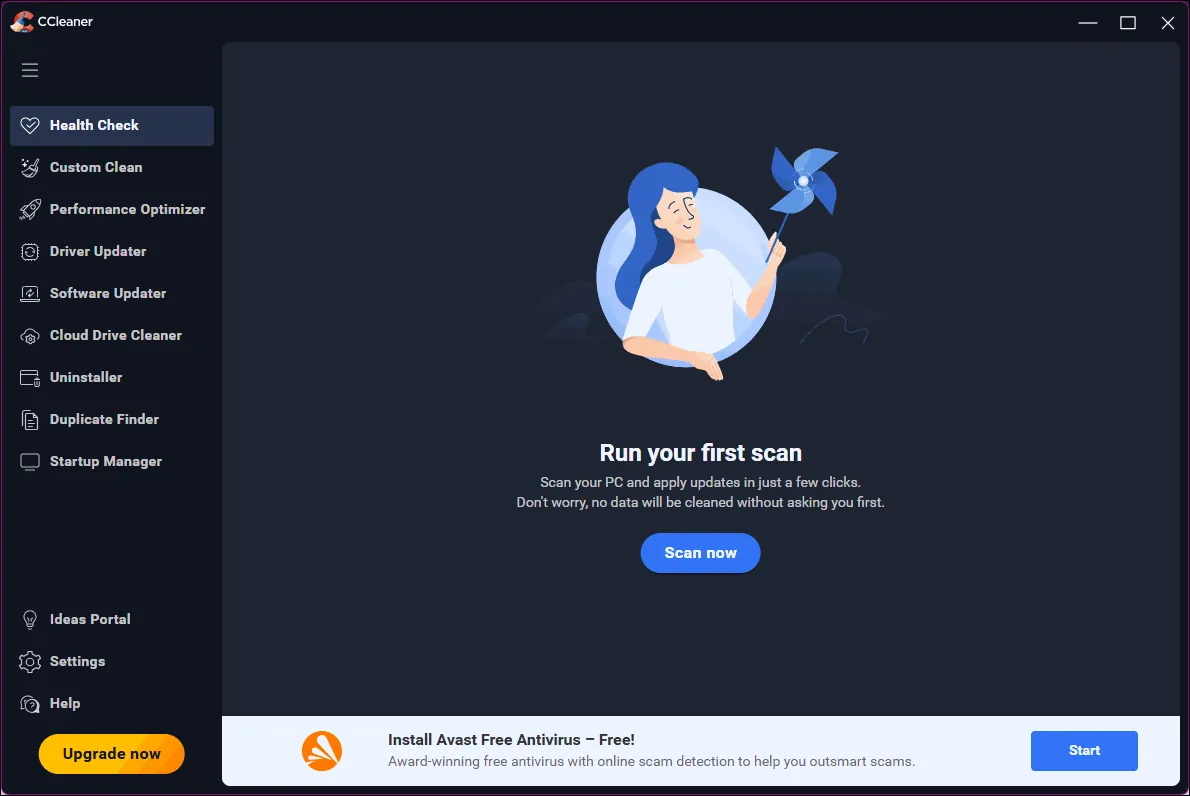
Some leftovers are registry entries that can keep context menu items, old file associations, or dead uninstall records hanging around. CCleaner can scan for registry issues and remove orphaned entries.
-
Create a restore point first.
-
Install and open CCleaner.
-
Go to the Registry section and run a scan.
-
Review what it finds.
-
Back up the registry when CCleaner prompts you, then apply fixes.
Download CCleaner from the official site:
Step 7: If You Suspect Anything Unwanted, Run a Malware Scan
If the program you removed was questionable, or you are seeing persistent pop-ups, browser changes, or unknown background processes:
-
Open Windows Security.
-
Run a Full scan (or Microsoft Defender Offline scan if available).
-
Restart afterward.