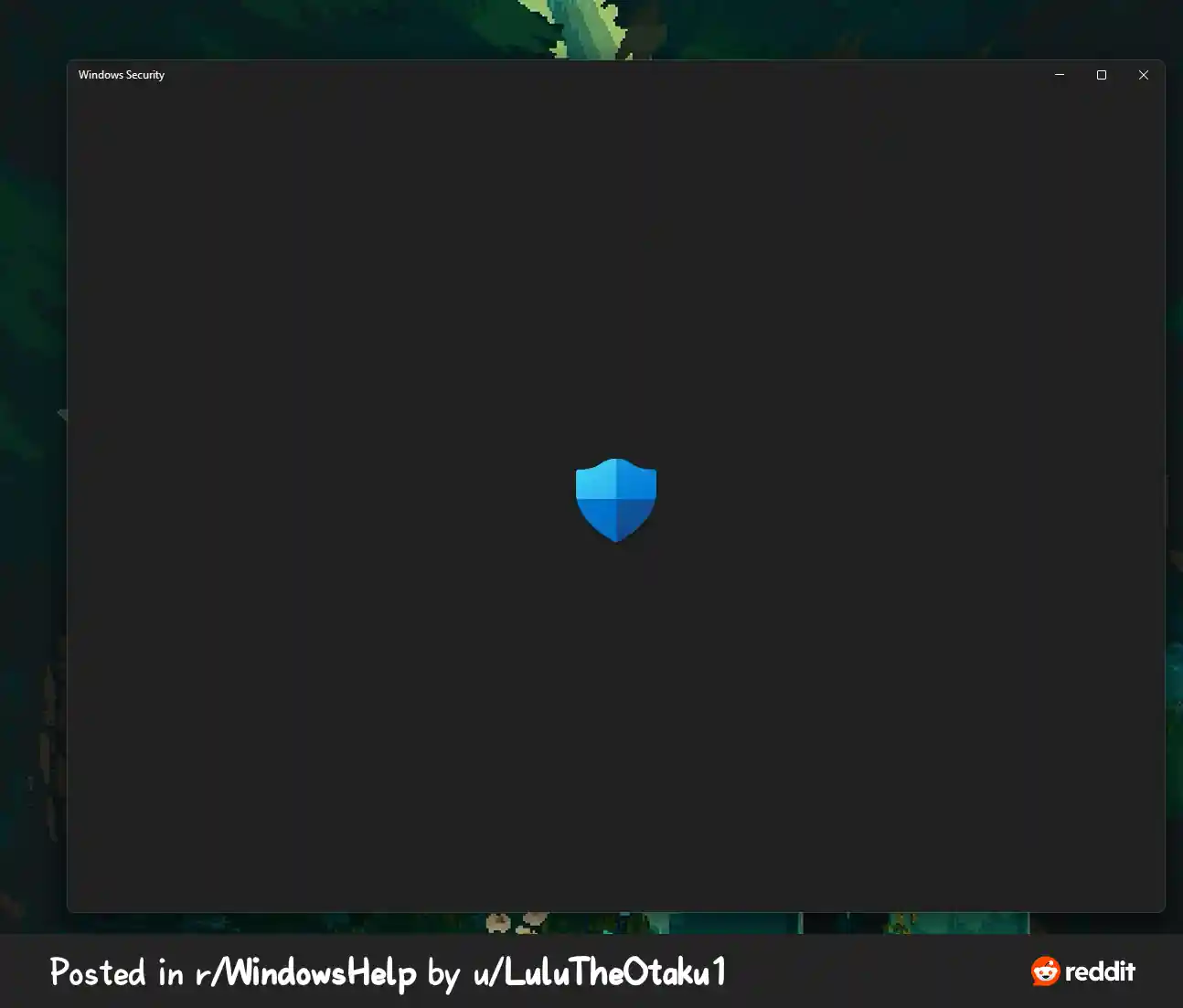
If Windows Security (Microsoft Defender) will not open, closes immediately, or shows as “disabled” right after installing cracked/repackaged software, the most common cause is that something intentionally turned Defender off so the software can run without being blocked.
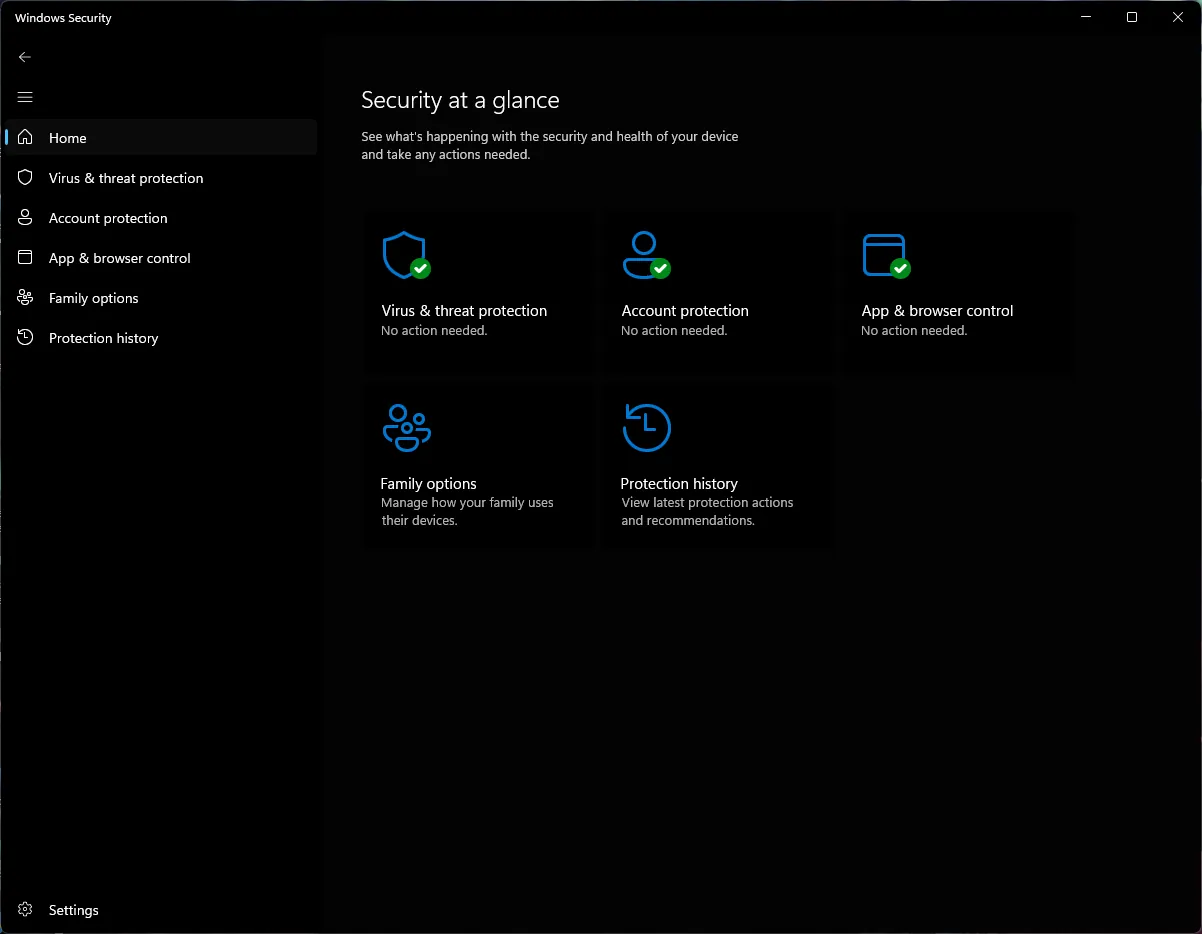
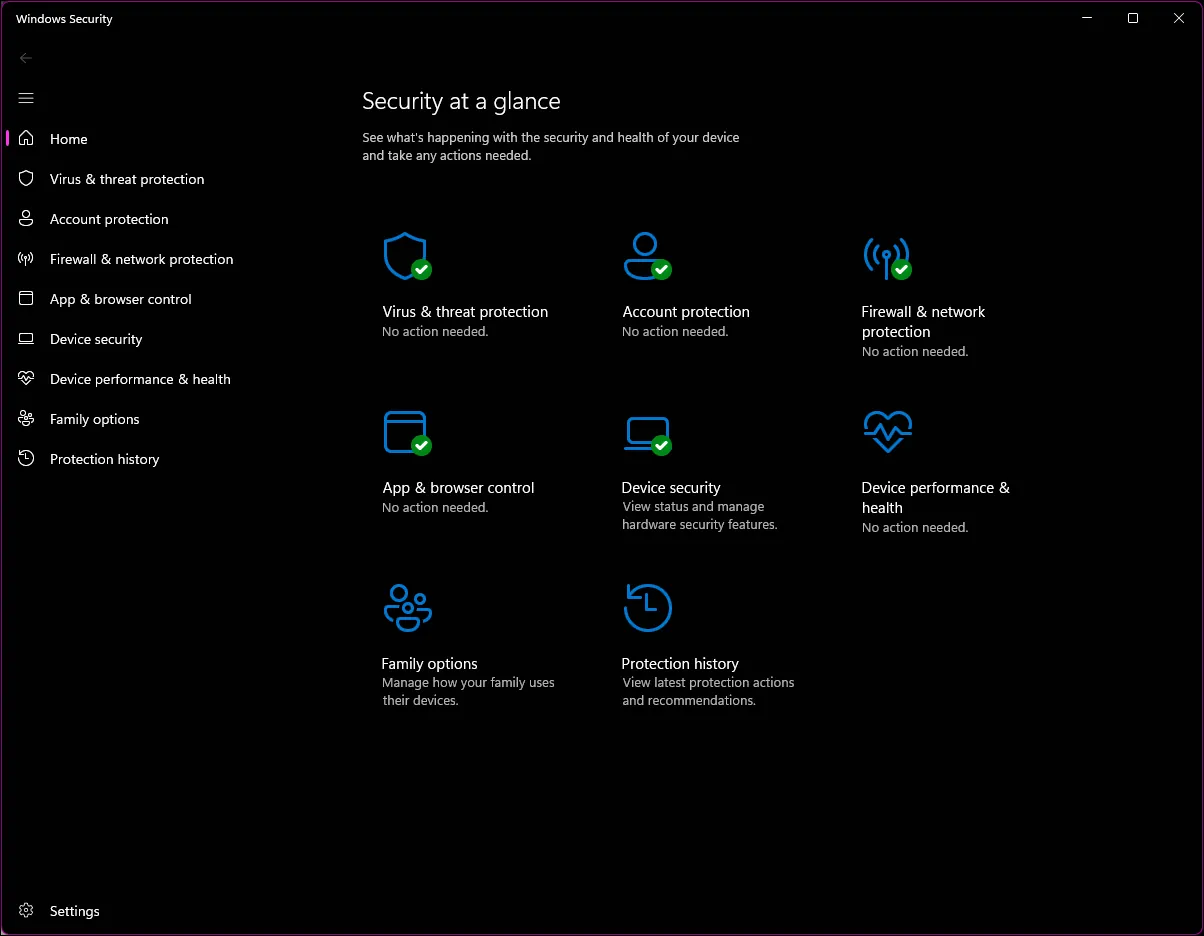
That “something” is usually one of these:
-
A suspicious background process (Task Manager)
-
A hidden scheduled task that re-disables Defender (Task Scheduler)
-
A registry change that disables Defender or security services (Registry Editor)
This guide focuses on finding and removing those entries, then repairing Windows system files so Defender can work again.
Before You Start
-
Disconnect from the internet if you suspect active malware (optional but recommended).
-
Back up important files if you can.
-
If you will edit the registry, create a restore point and be careful. Only remove entries you can clearly link to the unwanted software.
How to Fix It
1) Find and stop suspicious processes in Task Manager
-
Press Ctrl + Shift + Esc to open Task Manager.
-
Click More details (if you see it).
-
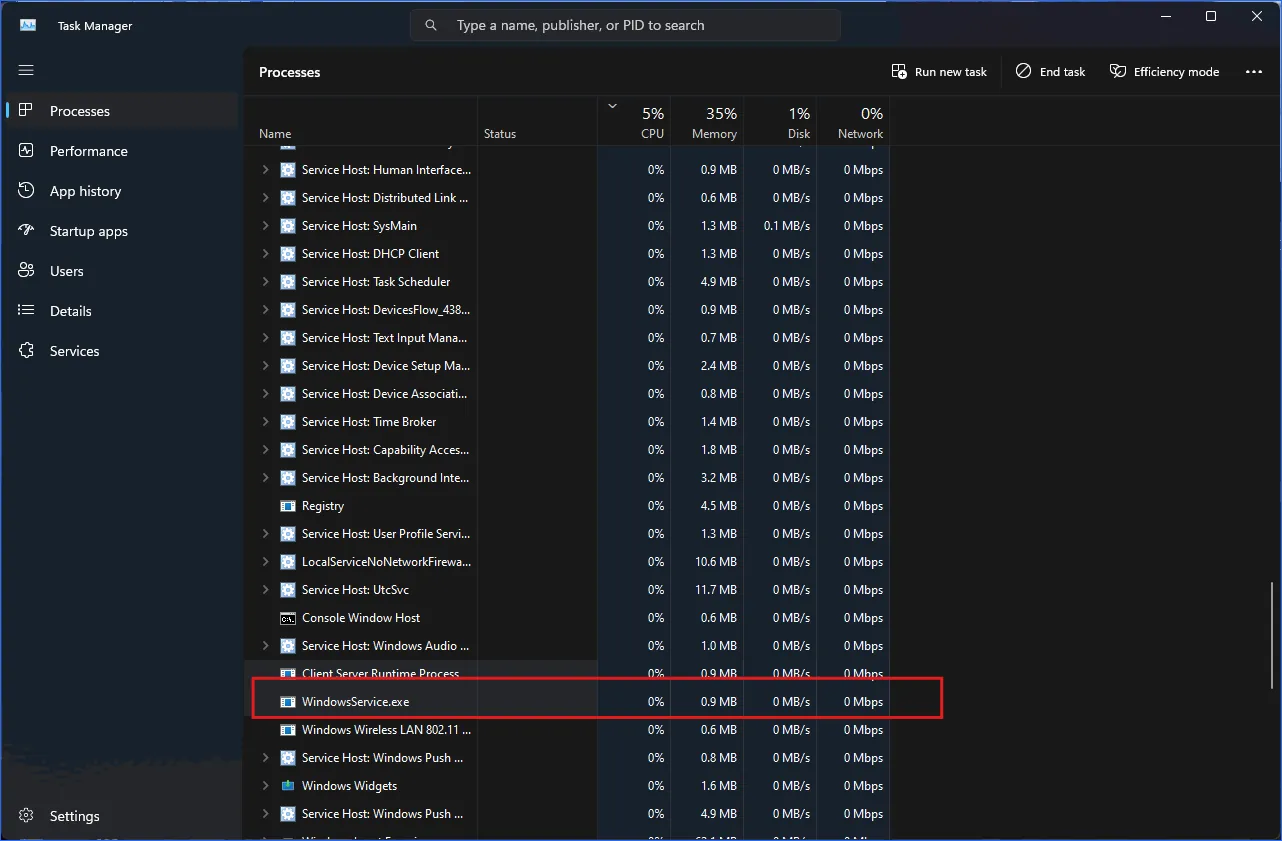
On the Processes tab, look for suspicious entries such as:
-
Random letters/numbers (example:
a8d3f.exe) -
“Updater”, “Runtime”, “Service Host”, "WindowsService" lookalikes that you do not recognize
-
Anything using high CPU/Disk constantly without a clear reason
-
-
Right‑click the suspicious process and select Open file location.
-
In the folder that opens, right‑click the file → Properties and check:
-
The Digital Signatures tab (if present)
-
The Details tab (Company name, description)
-
-
If it clearly matches the cracked/repackaged software or looks malicious:
-
Right‑click the process again → End task
-
Delete the file/folder (if Windows allows it)
-
If it will not delete, do not keep forcing it in normal mode. Move to Safe Mode later and remove it there.
2) Look for suspicious leftover folders and delete them
Instead of only disabling Startup apps, remove the folders where cracked/repackaged software usually hides its “Defender-disabling” components.
-
Close all open apps.
-
Press Windows + R, type %appdata%, press Enter.
Look for folders that match the cracked software name, the publisher name, or folders with random names. If you find one that clearly belongs to the unwanted software, delete it. -
Press Windows + R, type %localappdata%, press Enter.
Check the same way, especially inside Temp and any newly created folders. -
Press Windows + R, type %programdata%, press Enter.
Check for suspicious folders (this location is commonly used for hidden background components). -
Open File Explorer and check these folders:
-
C:\Program Files\ -
C:\Program Files (x86)\
Delete any leftover folder clearly tied to the unwanted software.
-
-
If you are not sure a folder is safe to remove, right-click the main EXE inside it, choose Properties, and check whether it has a legitimate publisher and a normal install path. Random EXE names in AppData/Temp are a common red flag.
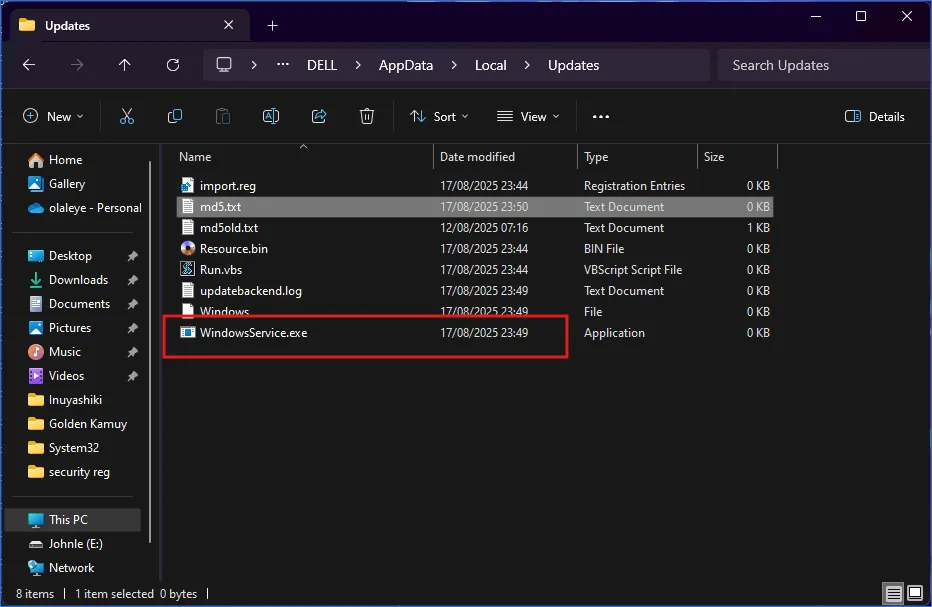
3) Remove suspicious Scheduled Tasks that keep re-disabling Defender

Cracked installers often create tasks that run every startup or every few minutes.
-
Open Start and search Task Scheduler.
-
Click Task Scheduler Library.
-
Click through folders on the left and look for tasks with:
-
Random names, or names that mimic Windows
-
Recent “Created” dates that match when the issue started
-
-
Click a suspicious task, then review:
-
Triggers tab (when it runs)
-
Actions tab (what it runs)
-
-
In Actions, note the file path. If it points to strange locations like:
-
C:\Users\<you>\AppData\Roaming\ -
C:\Users\<you>\AppData\Local\Temp\ -
A suspicious folder in ProgramData
that is a strong red flag.
-
-
Right‑click the task → Disable first.
-
Then right‑click → Delete (after you confirm it is not legitimate).
-
Go to the file path you saw in Actions and delete the related file/folder.
4) Check Windows services for anything disabling Defender
-
Press Windows + R, type
services.msc, press Enter. -
Look for suspicious services (unknown name, weird description, or odd executable path).
-
Double‑click a suspicious service and check Path to executable.
-
If it clearly points to the cracked software or a suspicious file:
-
Click Stop
-
Set Startup type to Disabled
-
Delete the related file from its folder (if possible)
-
Do not disable Microsoft services you do not understand. If in doubt, leave it and move to the next step.
5) Check registry entries commonly used for persistence and Defender blocking
This is where many “Defender won’t open” cases are coming from, especially after repackaged software.
-
Press Windows + R, type
regedit, press Enter. -
Before changing anything, you can export a backup:
- Click File → Export (save a backup file)
-
Check these common startup locations (these often launch malware on login):
-
HKEY_CURRENT_USER\Software\Microsoft\Windows\CurrentVersion\Run -
HKEY_LOCAL_MACHINE\Software\Microsoft\Windows\CurrentVersion\Run
-
-
Look for values pointing to strange executables in AppData/Temp or unknown folders. If it clearly matches the suspicious file you already found, delete the value.
-
Check for missing/corrupt entries in:
-
HKEY_LOCAL_MACHINE\SYSTEM\CurrentControlSet\Services\wscsvc -
HKEY_LOCAL_MACHINE\SYSTEM\CurrentControlSet\Services\SecurityHealthService\Security -
HKEY_LOCAL_MACHINE\SYSTEM\CurrentControlSet\Services\webthreatdefusersvc -
HKEY_LOCAL_MACHINE\SOFTWARE\Microsoft\Security Center -
HKEY_LOCAL_MACHINE\SOFTWARE\Policies\Microsoft\Windows Defender\Real-Time Protection -
HKEY_CLASSES_ROOT\Folder\shell\WindowsDefender
-
If you see policy entries clearly intended to disable Defender (especially if you did not set them yourself), remove those policy values/keys after backing them up.
Important: Some malware also uses scheduled tasks and services to re-create these registry entries. That is why you should do Task Manager + Task Scheduler + Services + Registry together, not only one of them.
6) If removal fails, repeat Steps 1–5 in Safe Mode
Safe Mode loads minimal drivers and fewer startup items, so malicious processes are less likely to block deletion.
In Safe Mode:
-
End the process again (Task Manager)
-
Delete the files from their locations
-
Delete the scheduled tasks
-
Remove the registry startup/policy entries
Restart back into normal mode afterward.
7) Repair Windows system files (SFC → DISM → SFC)
After you remove the malicious entries, repair system components so Windows Security can open again.
-
Right‑click Start → Terminal (Admin) / Command Prompt (Admin)
-
Run:
sfc /scannow -
Then run:
DISM /Online /Cleanup-Image /RestoreHealth -
Then run SFC again:
sfc /scannow -
Restart the PC.
If That Doesn’t Work
Do a repair install (in-place upgrade)
If Defender is still broken after removing persistence entries and repairing system files, an in-place repair (repair install) is often the cleanest fix. It refreshes Windows components without you having to wipe the PC.
Click here for instructions on how to do a repair install.
Contact a technician
If Windows Security still won’t open, or you are seeing suspicious processes/tasks returning after every reboot, it is safer to escalate.
Send a technician:
-
Your Windows version (10 or 11)
-
What cracked/repackaged software was installed (name + where it came from)
-
Screenshots of suspicious Task Scheduler Actions and startup entries you found
If you want me to handle it, share those details and I will guide you through a clean removal and restore.